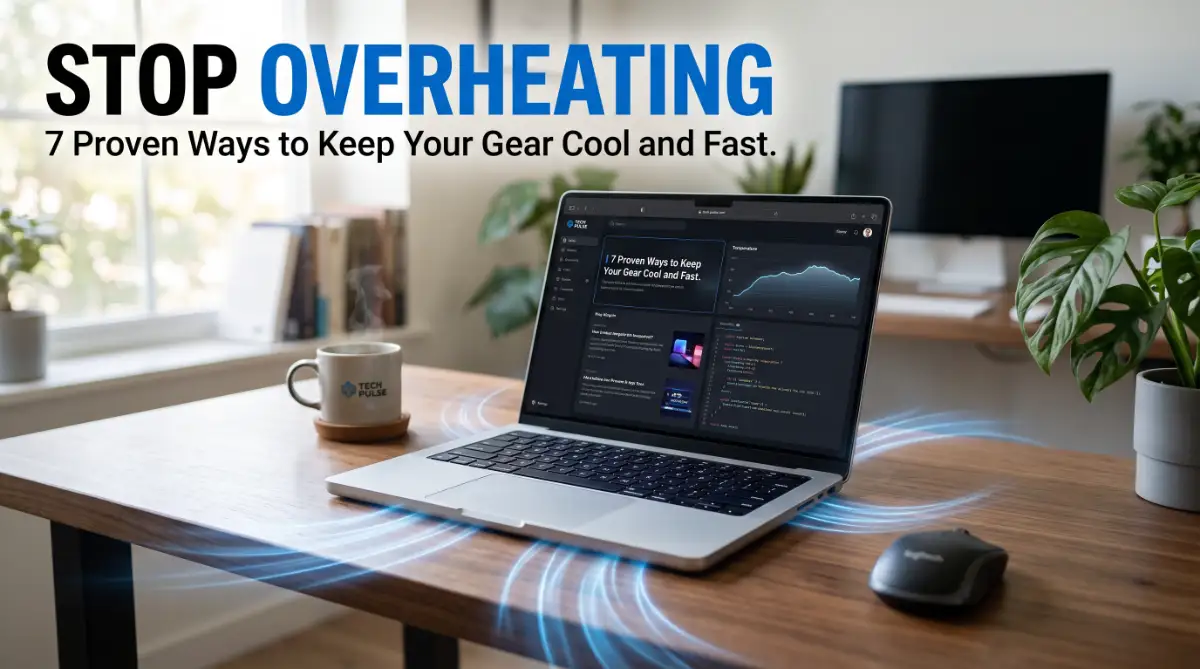
The Burning Reality of a Hot Laptop
I remember last summer when my laptop got so hot I could barely touch the keyboard while editing a simple video. The fans were screaming so loud that I actually thought my expensive machine was about to catch fire right on my desk.
It was a scary moment because I didn't have the money to replace it, and that’s when I realized I had to change my habits before I lost my work and my hardware forever.
You are sitting at your desk, working on an important project or playing your favorite game. Suddenly, you feel a wave of heat hitting your hands. You hear the internal fan spinning so fast it sounds like a jet engine taking off.
Then, the dreaded lag starts. Your mouse skips, your apps freeze, and you start to worry if your expensive machine is about to melt.
This is a common struggle for almost every laptop user today. We buy these powerful machines to help us work and play, but the heat makes them feel like a burden.
It is not just about the warmth; it is about the fear that your hardware is dying a slow death.
Why most people fail to fix the heat:
- Many users try to block the heat by putting the laptop on a soft pillow or bed. This actually blocks the air vents and makes the problem ten times worse.
- We often ignore the tiny dust bunnies hiding inside the ports for months or even years.
- Some people buy cheap cooling pads that blow air in the wrong direction, fighting against the built-in fans.
- Users often trust "magic" software that promises to cool the CPU but actually uses more power and creates more heat.
The hidden cost of high temperatures:
- You lose your focus because the loud fan noise is constantly distracting you from your work.
- The fear of a sudden crash makes you save your work every two minutes, breaking your creative flow.
- Your battery life drops fast because heat is the number one enemy of lithium-ion batteries.
- You feel frustrated because you paid a lot of money for a "fast" laptop that now feels slower than an old phone.
Laptops today are thinner and more powerful than they have ever been. While this looks great, it creates a massive problem for physics.
Engineers cram huge processors into tiny metal or plastic cases. When these chips work hard, they create massive heat. If that heat cannot escape, the system slows itself down to stay safe.
This is called "thermal throttling." Think of it like a professional athlete trying to run a race in a heavy winter coat. They will start fast, but they will eventually slow down just to survive the heat.
To keep your laptop fast, we have to help it breathe.
Your Roadmap to a Chilled and Fast Machine
Keeping your device cool does not require a degree in computer science. It is about simple habits and smart settings. We have tested many ways to drop temperatures, and these are the most effective ones you can use right now.
1. Give Your Laptop a Hard Surface to Breathe
The most basic mistake is where you place your laptop. Your device has small rubber feet on the bottom for a reason. They create a tiny gap for air to flow.
When you put your laptop on a bed, a blanket, or your lap, those feet sink into the soft fabric. This completely seals the bottom vents. The hot air stays trapped inside, and the temperature spikes within seconds.
Pro Tip: Always use a hard, flat surface like a wooden desk or a tray. If you are on the go, even a large hardcover book can act as a temporary desk. This simple change can drop your temperature by 5 to 10 degrees instantly.
2. The Secret "99%" Power Hack
This is a hidden trick that most people never find. Windows laptops have a feature called "Turbo Boost." It pushes your CPU to its maximum speed, but it also creates a massive burst of heat.
You can stop this spike without losing much speed. Go to your Power Options and find the Maximum Processor State. Usually, it is set to 100%. If you change it to 99%, the laptop will stop using the aggressive Turbo Boost.
We have seen this single change drop temperatures by 15 degrees in heavy games. You won't notice a difference in your daily browsing, but your laptop will feel much cooler and the fans will finally go quiet.
For a long time, I made the mistake of thinking I needed a bulky cooling pad with five fans to fix my heat issues. I actually felt a bit silly when I realized that a simple setting change in my power menu saved me more than any expensive gadget ever could.
Switching that one setting was the biggest "aha" moment in my tech journey, and the best part was that it didn't cost me a single cent.
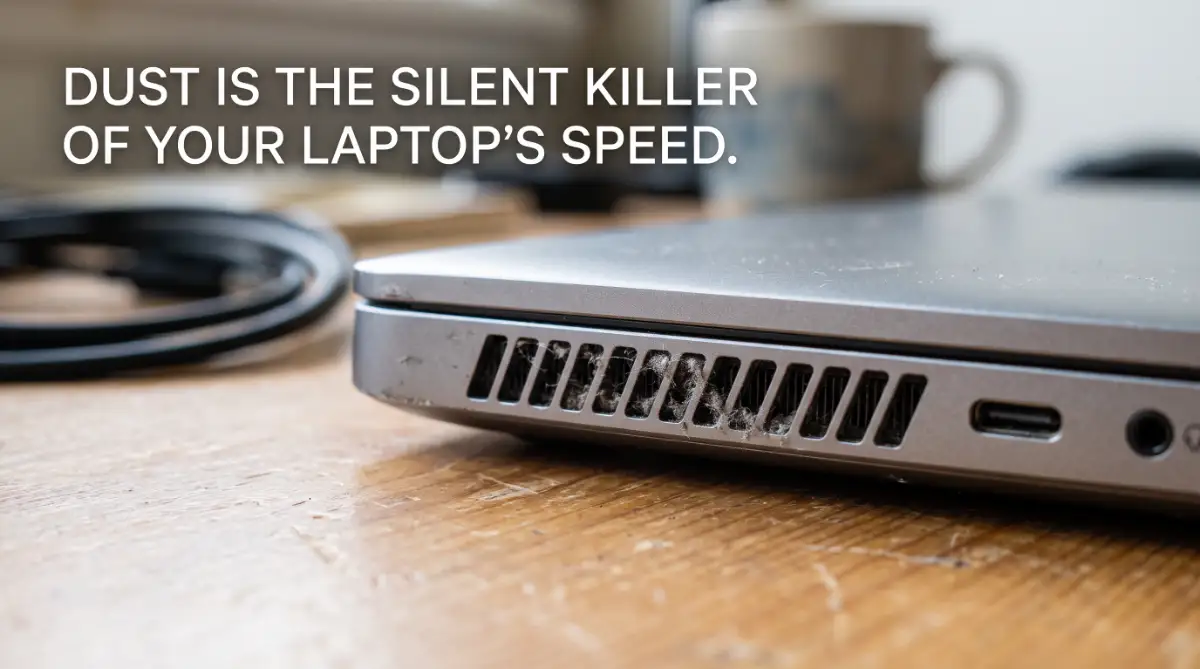
3. Clear Out the Silent Killer: Dust
Inside your laptop, there are tiny copper fins called heatsinks. Over time, these fins act like a net, catching dust, pet hair, and lint. When a layer of dust builds up, it acts like a blanket, keeping the heat inside.
You don't always need to open your laptop to fix this. A can of compressed air is your best friend. With the laptop turned off, give short bursts of air into the exhaust vents. You will likely see a cloud of dust fly out.
If you are nervous about cleaning your laptop or want to see exactly how to use compressed air without causing damage, this quick visual guide is a lifesaver. Watch the video below to master the cleaning process before you move on to the rest of the maintenance steps below.
4. Manage Your Background "Ghost" Apps
Sometimes the heat isn't caused by what you are doing, but by what you don't see. Many apps start automatically when you turn on your computer. These apps sit in the background, using your CPU and generating heat.
Open your Task Manager (Ctrl + Shift + Esc) and look at the "Startup" tab. Disable anything you don't need every single day. If your CPU usage is at 20% while you are doing nothing, that is 20% of extra heat being created for no reason.
We recommend keeping only the essentials like your security software. Everything else should stay off until you actually click on it. This keeps your system lean, fast, and most importantly, cool.
5. Use a Stand, Not Just a Cooling Pad
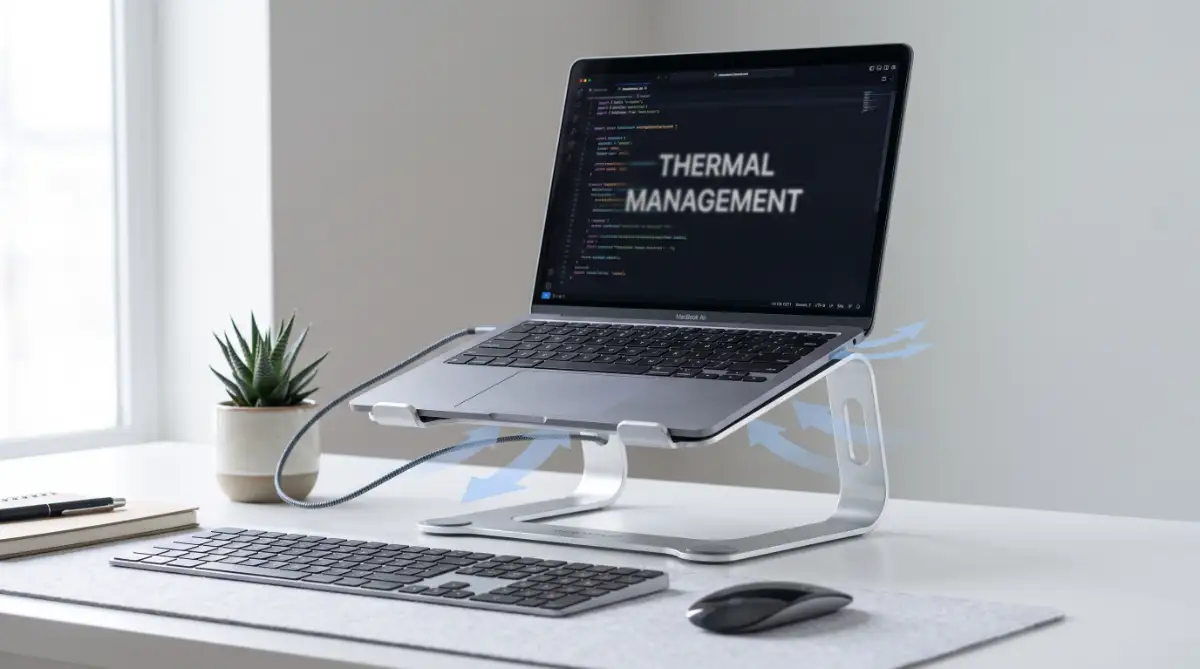
Many people rush to buy a cooling pad with five loud fans. While these can help, they are often bulky and loud. A simple, hollow laptop stand is often just as good.
By lifting the back of the laptop just two inches off the table, you allow fresh air to reach the intake fans much easier. It is like opening a window in a stuffy room.
Expert Insight: Look for a stand that leaves the bottom of the laptop exposed. If the stand is a solid piece of plastic, it might trap heat against the casing. Aluminum stands are great because the metal itself helps soak up some of the heat from the laptop body.
6. Keep Your Software and BIOS Updated
It might sound strange, but software can fix heat. Manufacturers often release updates for the BIOS (the brain of your motherboard). These updates often include better "fan curves."
A fan curve tells the laptop when to spin the fans faster. Older software might wait too long to start the fans, letting the heat build up. New updates can make the fans react smarter and sooner.
Always check your manufacturer's website (like Dell, HP, or ASUS) for the latest firmware. We have seen updates that completely changed how a laptop handles heavy video editing tasks.
7. The Myth of "Always High Performance"
Windows and Mac both have power modes. Many people think they should always keep it on "Best Performance." However, this tells the laptop to keep the CPU running at high clocks even when you are just reading an email.
Switch to "Balanced" mode. Modern processors are very smart. They can jump to high speeds in a millisecond when you need it and drop down when you don't. Using Balanced mode allows the chips to "relax" and cool down between tasks.
Imagine a car engine. You wouldn't keep the engine revving at 5,000 RPM while sitting at a red light. Your laptop shouldn't do that either. Let it rest, and it will last much longer.
Why Science Matters Here
Electronics work through the movement of electrons. When these electrons move through tiny circuits, they hit resistance. This resistance creates heat. As the temperature goes up, the resistance increases even more.
It is a nasty cycle. More heat leads to more resistance, which leads to even more heat. By using the steps above, you are breaking that cycle. You are making it easier for your laptop to do its job.
When your laptop stays cool, it stays fast. When it stays fast, you stay productive and happy.
Keep these habits in mind, and you will never have to worry about your laptop feeling like a hot stove again. Your hardware will thank you, and your battery will last for years instead of months.
Professional Hacks to Lower Heat Without Buying Hardware
Now that you have the basics down, it is time to look at some advanced tricks. These are the steps professional PC builders use to keep high-end machines running cool.
You don’t need to be a genius to try these, but you do need to be careful.
Lowering the Voltage for Maximum Efficiency
Imagine you have a lightbulb that stays on at full brightness but gets very hot. If you could give it just a little less electricity, it might stay just as bright but feel much cooler. This is called undervolting.
Modern laptop processors often take more power than they actually need to run fast. By using free tools like Throttlestop or Intel XTU, you can tell your CPU to use slightly less power.
This does not slow down your laptop. In fact, it often makes it faster because the laptop doesn't have to slow itself down due to heat.
Many users see a drop of 10 to 15 degrees Celsius just by making this one small change. If you are struggling with stuttering during games, check out our guide on how to fix lag issues because the logic is very similar for laptops.
The "Bread and Butter" of Cooling: Thermal Paste
Inside your laptop, there is a small piece of metal that sits on top of your processor. Between that metal and the chip, there is a special gray cream called thermal paste. This paste fills tiny air gaps so heat can move away from the chip faster.
Over two or three years, this paste dries out and turns into a hard, useless crust. When this happens, heat stays trapped on your CPU. Replacing this paste is a bit like changing the oil in a car. It is a messy job, but it gives your laptop a second life.
If you aren't comfortable opening your laptop, you can take it to a local shop. A fresh application of high-quality paste can make an old, hot laptop feel like it just came out of the box.
Checking for Hidden Software Stress
Sometimes your laptop is hot because it is working too hard on things you didn't even ask for. Some websites use your laptop’s power to mine digital currency in the background. Other times, a simple Windows update might be stuck in a loop.
Open your Task Manager and click on the "CPU" column to sort by usage. If you see a program using 30% or more while you are doing nothing, that is your heat source.
Close that app and see how fast the temperature drops. This is a great way to extend the battery lifespan of your laptop because a cool battery is a happy battery.
Keeping Your Laptop Healthy for the Long Run
Good cooling isn't a one-time fix. It is a habit. If you want your machine to last five or six years, you need to follow a simple maintenance routine.
Your Monthly Maintenance Plan:
- Blow out the vents: Use a can of compressed air every 30 days to stop dust from building up.
- Audit your apps: Look through your installed programs and delete things you haven't used in a month.
- Check the fans: Listen for weird grinding or clicking sounds. Fans are mechanical parts, and they eventually wear out.
If you start hearing strange clicking or grinding noises that aren't coming from the fans, be careful. It could be a sign of a failing laptop hard drive, which can also cause the system to work harder and get hotter.
Real-Life Scenario: The Summer Heatwave
Think about a hot summer day. If your room is 30 degrees Celsius, your laptop is already starting at a disadvantage. Electronics cannot cool themselves below the temperature of the room.
On very hot days, try to work in an air-conditioned space or use a desk fan to blow air across the surface of the laptop. This helps move the "heat halo" away from your device.
Fatal Errors: What You Must NEVER Do to Cool a Laptop
When a laptop gets hot, people often panic and do things that actually break their hardware. Avoiding these mistakes is just as important as the tips we mentioned earlier.
1. The Ice Pack Disaster
It sounds logical: if something is hot, put something cold on it. We have seen people put bags of frozen peas or ice packs under their laptops. Stop right there.
This causes condensation. When the hot air inside the laptop hits the freezing cold surface, it turns into water droplets. Water inside a laptop is a death sentence.
You will short-circuit the motherboard, and your laptop will never turn on again. Stick to air cooling; never use ice or liquids.
2. The Vacuum Cleaner Trap
You might think using a vacuum to suck dust out of the vents is a smart move. In reality, vacuum cleaners create a massive amount of static electricity.
One tiny static shock to your laptop's internal parts can fry the whole system. Always use compressed air or a small, soft brush. Never put a vacuum hose anywhere near your computer's internal components.
3. Blocking the Side Vents While Carrying
Many people leave their laptops running while they put them in a backpack. Even if it is in "Sleep" mode, it might wake up to run an update. Inside a padded bag, there is zero airflow.
The heat will build up until it reaches dangerous levels. Always make sure your laptop is completely shut down or in "Hibernate" mode before putting it in a case.
Many batteries have been ruined this way. For more on this, read the truth about how to stop killing your battery.
4. Trusting "Cooling" Software Too Much
There are many apps that claim they can "Cool Down Your CPU in One Click." Most of these are scams or simple "Task Killers" that don't do much.
In some cases, these apps contain ads that actually make your processor work harder. Trust your hardware settings and physical cleaning more than any "magic" software.
5. Using the Wrong Charger
If you lose your original charger, don't just buy the cheapest one online. A bad charger can provide "dirty" power that causes the charging circuits to get extremely hot.
This heat spreads through the entire laptop. Always try to use the original power brick or a high-quality replacement from a trusted brand like Intel or your laptop's manufacturer.
Your Daily Cooling Action Plan
Wrapping everything up, your laptop doesn't have to be a heater. You have the power to control the temperature and keep your speed high. By following these steps, you are protecting your investment and making your work life much easier.
Expert Final Checklist:
- Hard Surface Only: No more beds or couches for your laptop.
- Lift It Up: Use a simple stand to let the fans breathe.
- Clean the Vents: A 10-second blast of air once a month is all it takes.
- Check Your Power Mode: Use "Balanced" instead of "High Performance" for daily tasks.
- Watch the Background: If you aren't using an app, close it.
Laptops are amazing tools, but they are sensitive to their environment. When you take care of the heat, the laptop takes care of you. You will notice faster load times, a quieter room, and a battery that doesn't die in twenty minutes.
Don't wait until your screen freezes or your laptop shuts down on its own. Start with the easiest step today—find a hard, flat surface and feel the difference.
Your machine was designed to be fast; don't let a little bit of dust and heat hold it back.
If you found these tech tips helpful, you might also want to learn how to clean a phone charging port safely. Keeping all your gadgets clean and cool is the best way to save money and avoid trips to the repair shop.
Looking back, taking care of my laptop's heat didn't just make it faster; it gave me peace of mind knowing my device wouldn't crash during an important meeting.
I want you to feel that same confidence, so please don't wait until your screen freezes to try these steps. Take five minutes right now to give your laptop the breathing room it deserves, and you will see the difference in speed immediately.
A Note from the Team:
This guide is for informational purposes. While these tips are generally safe, always check your manufacturer's warranty before opening your device. Taking care of your tech today saves you from the stress of a broken machine tomorrow!
Disclaimer: The information provided in this blog post is for educational purposes only. Maintenance tasks like opening a laptop or changing BIOS settings are done at your own risk. We are not responsible for any hardware damage. Always consult with a professional technician if you are unsure about a specific step.