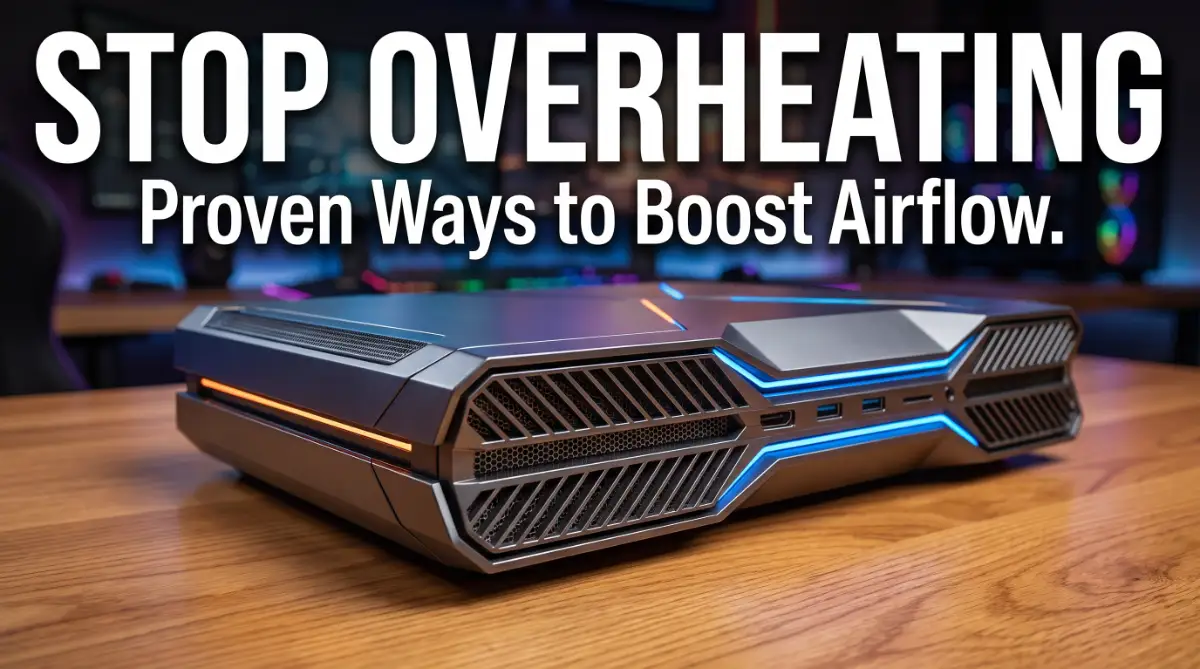
When Your Console Screams for Help: The Hidden Cost of Heat
I remember sitting in my room last summer, terrified because my console sounded like a vacuum cleaner. I was halfway through a massive game update when my system just quit on me.
I really thought I had burned out my expensive hardware forever. That scary moment is what led me to learn everything I could about keeping my gear safe and silent.
You are right in the middle of an intense boss fight. Your heart is racing, your fingers are moving fast, and you are just seconds away from winning. Suddenly, your screen freezes. The fans inside your console start sounding like a jet engine taking off.
Before you can react, the system shuts down. This isn't just a small glitch; it is a sign that your expensive hardware is suffocating.
Overheating is the silent killer of gaming consoles. We invest hundreds of dollars into these machines, expecting them to last for years. But when the heat builds up, it slowly eats away at the internal parts.
It starts with small frame drops, then loud noises, and eventually, the dreaded hardware failure. It feels like your hobby is being taken away by a problem you can't see.
Why Common Fixes Often Make the Problem Worse
Most gamers notice the heat and try to fix it using bad advice they found online. This often leads to more frustration and even more damage.
- Many people put their console inside a closed TV cabinet to keep the room looking clean. This traps hot air and creates an "oven effect" where the console just breathes its own heat back in.
- Some gamers use cheap "external cooling fans" that actually block the natural airflow designed by the engineers.
- We often see people using compressed air cans to blow dust into the console instead of out, which clogs the heat sinks even more.
- Ignoring the loud fan noise is a huge mistake. That noise is your console trying to tell you it can't stay cool anymore.
- Using the console on a carpet or soft surface blocks the bottom intake vents completely.
The Mental Stress of Hardware Failure
Living with an overheating console is stressful. Every time you turn it on, you wonder if this will be the day it finally dies. You stop playing high-end games because you are afraid they will push the machine too hard.
This ruins the whole point of owning a next-gen system. Instead of relaxing, you are constantly checking the temperature and listening to the fan.
We understand that anxiety. Nobody wants to deal with expensive repairs or wait weeks for a service center to send it back. The feeling of "gear fear" can take the joy out of gaming.
You start looking for solutions, but the technical jargon makes it feel like you need a degree in engineering just to clean a fan. It shouldn't be that hard.
The Science of Silence: How Heat Damages Your Hardware
To fix the issue, we need to understand what is happening inside. Your console has a powerful chip that works like a tiny heater. To keep it safe, the system uses a combination of metal heat sinks and a high-speed fan. Air must flow in, pick up the heat, and blow it out.
When this flow is interrupted, the internal temperature rises. Modern consoles have a safety feature that slows down the chip to reduce heat. This is why your games start to lag or stutter.
If the heat keeps rising, the system shuts down to prevent the motherboard from melting. Over time, this heat cycle makes the metal parts brittle and can cause permanent cracks in the internal solder.
Phase One: Reviving Your Airflow with Three Simple Shifts
Fixing the heat issue doesn't always mean opening up your console. Often, the biggest changes come from how and where you keep your machine. Let's look at the first three steps you can take today to give your console a fresh breath of air.
I once made the big mistake of keeping my console on a thick rug because I thought it looked better for my setup. Within a week, the bottom of the machine was burning hot to the touch.
I quickly realized that soft surfaces are heat traps. Now, I always use a hard wooden or glass surface, and the difference in fan noise was almost instant for me.
1. The Six-Inch Rule for Perfect Ventilation
The most common reason for overheating is simply "bad housing." Consoles are not like DVD players; they need a massive amount of fresh air. If your console is tucked away in a tight corner, it is starving.
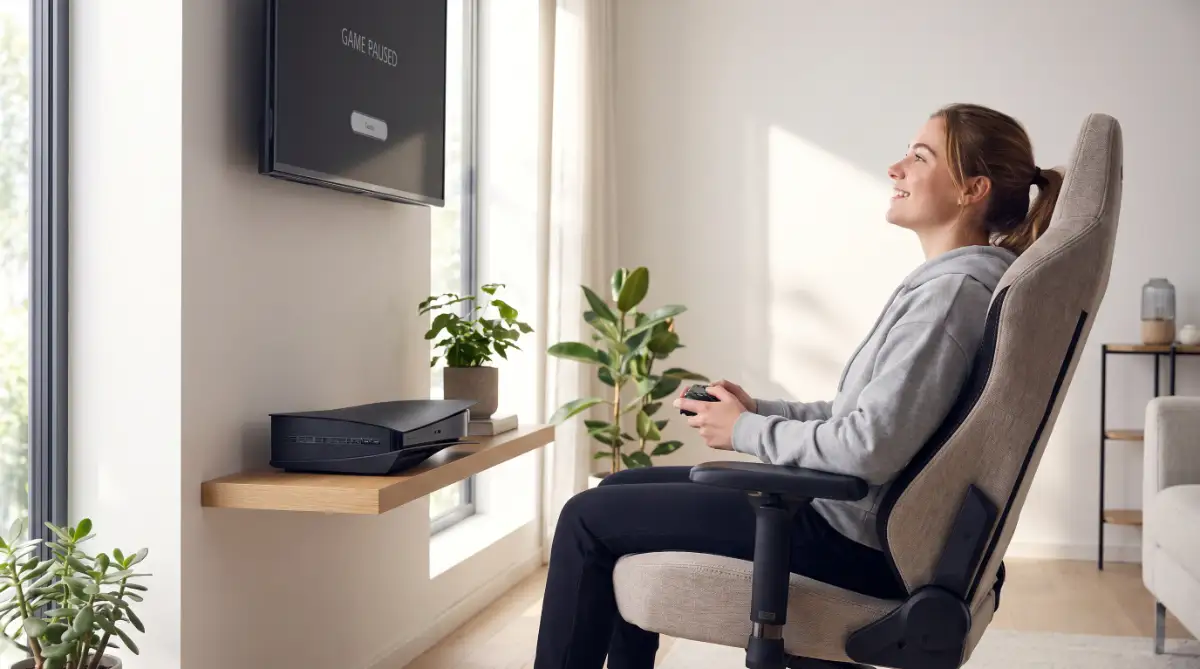
The Solution: You should ensure there is at least six inches of open space on every side of the console. This includes the back, the sides, and the top. The back is especially important because that is where the hot air escapes.
If the back is pushed against a wall, that hot air hits the wall and bounces right back into the intake.
Pro Tip: If you must keep it in a media center, remove the back panel of the furniture. This allows the hot air to escape behind the desk rather than building up inside the cabinet. We have seen temperatures drop by 10 degrees just by moving the console a few inches away from a wall.
2. Choosing the Right Orientation for Your Setup
Does it matter if your console stands up or lies down? For next-gen systems, the answer is "yes," but not for the reason you think. While engineers design them to work in both ways, one might be better for your specific room.
The Horizontal Advantage: In most setups, laying the console flat (horizontal) provides more stability and allows the heat to rise naturally away from the main vents. It also prevents the console from being easily tipped over.
The Vertical Advantage: If you have a very narrow space, standing it up (vertical) might allow more air to reach the side vents. However, you must make sure the stand is properly attached. Never block the bottom vents by standing it up without the official stand.
Analogy: Think of your console like a person running a marathon. If they are wearing tight clothes (a tight cabinet), they will overheat. If they are in an open field (a clear desk), they can run much longer and faster.
3. Dealing with the Invisible Enemy: Dust Carpets
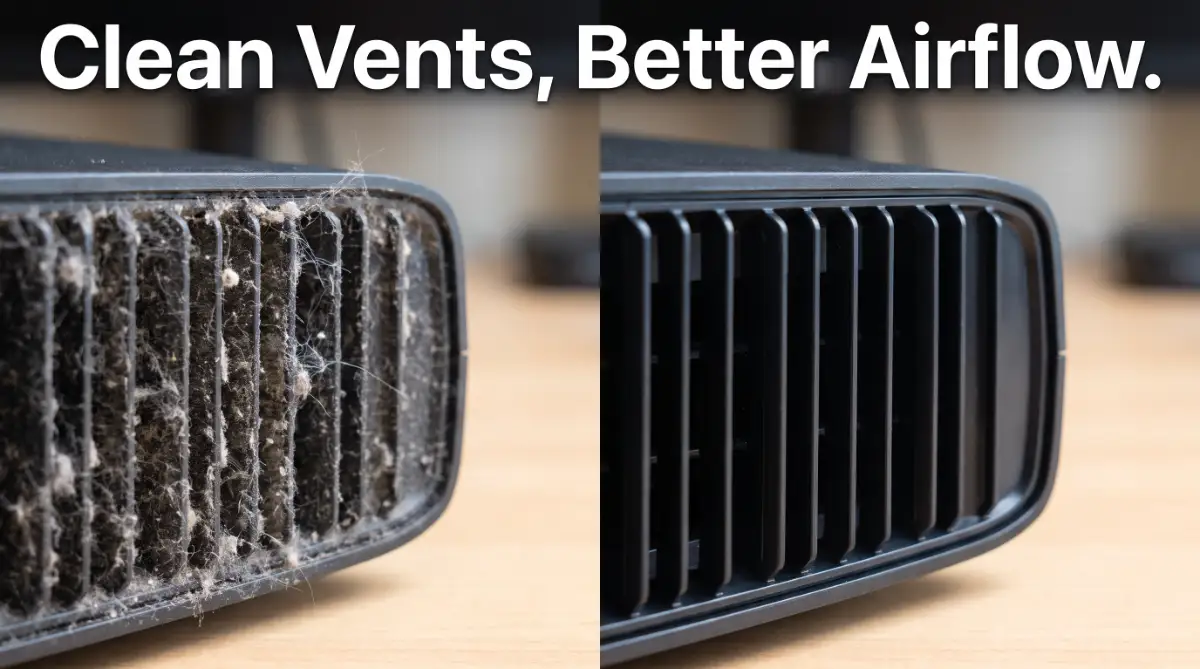
Dust is like a thick wool blanket for your console’s internal parts. It sticks to the fan blades and the heat sink fins. Once a layer of dust forms, it acts as an insulator, keeping the heat inside the machine.
The Action Plan: You don't need to be a pro to fight dust. Start by using a low-power handheld vacuum or a soft microfiber cloth to clean the external vents every week. If you see dust buildup on the outside, imagine what it looks like on the inside.
Safe Cleaning Tip: Never use a regular household vacuum with a metal tip, as it can cause static electricity. Instead, use a soft brush to loosen the dust while the console is off. We recommend doing this once a week to prevent the "carpet" from forming inside.
Not sure how to safely clean those dusty vents? Check out this helpful video to see exactly how to clear out the dirt without hurting your console!
The Myth vs. Reality of Cooling Pads
You might have seen many "cooling stands" sold online. Most of these are a waste of money.
Instead of buying gadgets, focus on ambient temperature. If your room is hot, your console will be hot. Keeping your room cool with a standard fan or AC is much more effective than adding a tiny plastic fan to the back of your console.
Why Your Console Fan Sounds Like a Jet
When the fan speeds up, it is doing its job. It is trying to pull more air through the system because the sensors detect a heat spike. If your fan stays at a high speed even in the game menu, it means the airflow is restricted.
Think of it like breathing through a straw. It takes a lot more effort to get the same amount of air. By following the steps above, you are essentially "taking the straw away" and letting your console breathe normally again. This lowers the fan speed, makes your room quieter, and extends the life of your hardware.
In the next part of this guide, we will look into the deeper cleaning methods and how to manage your software settings to keep things even cooler.
For now, move your console to an open space and give those vents a quick wipe. Your gaming sessions will already feel a lot better.
Mastering the Art of Console Longevity: Advanced Cooling Secrets
Once you have the basics of placement and dusting down, it is time to look at the pro-level strategies. These are the steps that separate a casual gamer from someone who truly understands hardware care.
We often think that hardware heat is only about the physical fans, but there is more to it. Your console is a complex mix of hardware and software. Both need to work together to keep the temperature low.
Step 4: Optimizing Software Settings to Lower Internal Strain
Did you know your game settings can actually change how hot your console gets? Many next-gen games offer a choice between "Performance Mode" and "Resolution Mode."
While Resolution Mode makes things look beautiful, it forces the GPU to work at its absolute limit. This creates a massive amount of heat in a very short time. If your room is already a bit warm, this extra strain can push your console over the edge.
Switching to Performance Mode often lowers the resolution slightly but targets a higher frame rate. This often balances the workload better, keeping the internal chips from hitting their peak heat levels.
If you are experiencing performance drops along with heat, you might also want to look into how to fix lag issues on your gaming console. Often, these two problems go hand in hand. By optimizing your settings, you give your fans a much-needed break.
Step 5: The "Cool Air Intake" Strategy
We talked about ventilation, but we need to talk about the quality of the air. If the air in your room is hot and humid, your fans are just blowing warm air over hot metal. This doesn't help much.
Try to keep your console in the coolest part of the room. Avoid placing it near windows where direct sunlight can hit the black casing. Black plastic absorbs heat very quickly, which adds to the internal temperature.
If you are playing during a hot afternoon, a simple floor fan pointed toward your entertainment center can help. It moves the "cloud" of hot air away from the console's back vents so it doesn't get sucked back in.
This is very similar to how people manage heat in other devices. For instance, if you also play on a computer, you should check out these ways to stop laptop overheating. The science of airflow remains the same across almost all gaming hardware.
Long-Term Maintenance: The Routine That Saves Money
You don't want to wait for a "System Overheated" warning to take action. The best way to keep your machine quiet is to have a monthly routine.
Every 30 days, do a deep inspection of the ports and vents. Use a small flashlight to look inside the intake grills. If you see grey "lint" starting to build up, use a soft, dry toothbrush to gently brush it away.
Always keep the area around your console clean too. If the floor or shelf is dusty, the console will act like a vacuum cleaner and pull all that dirt inside. A clean room means a clean console.
We also suggest checking your power cables. A damaged or tightly coiled power cable can sometimes get warm, adding a tiny bit of extra heat to the overall setup. It is better to be safe than sorry when dealing with high-end electronics.
Expert Insight: When to Consider a Professional Deep Clean
Sometimes, no matter how much you clean the outside, the heat stays high. This usually happens after two or three years of heavy use.
Inside the console, there is a special paste called thermal paste. It helps move heat from the chip to the metal heat sink. Over time, this paste can dry out and stop working.
If your console is still running hot after you have followed all these steps, it might be time for a professional to open it up.
We do not recommend doing this yourself if the console is still under warranty. Opening the shell often breaks the warranty seal, meaning you can't get free repairs later.
According to technical guides on sites like TechRadar, keeping the internal components free of microscopic debris is the number one way to prevent hardware "death." Just like you change the oil in a car, high-end electronics need internal care every few years.
The Danger Zone: Common Mistakes That Kill Consoles
Even with the best intentions, many gamers make mistakes that actually hurt their systems. Let's look at the pitfalls you should avoid to keep your hardware safe.
1. The Compressed Air "Blast" Trap
This is the most common mistake we see. People buy a can of compressed air and spray it directly into the vents.
While it looks like the dust is gone, you are actually pushing that dust deeper into the power supply and onto the motherboard. This can create a "dust cake" that blocks air completely.
If you use air, only use short, angled bursts to blow the dust outward. Never stick the nozzle deep into the machine. You could also accidentally spin the fan too fast with the air, which can damage the fan's motor.
2. Using the Infamous "Towel Trick"
Years ago, an old internet myth suggested wrapping a hot console in a towel to "reset" it. Never do this.
This is incredibly dangerous. It traps all the heat inside and can literally melt the plastic parts or start a fire. Heat is the enemy, so adding a blanket or towel is the worst thing you can do. If your console is hot, it needs air, not a blanket.
3. Ignoring Your Pets and Their Fur
We love our cats and dogs, but they are a nightmare for gaming consoles. Pet hair is thicker and more "sticky" than regular house dust. It clogs up vents in a matter of days.
If you have pets, your console should never be on the floor. Keep it on a high shelf. You will also need to clean your vents twice as often as someone without pets.
Think of it like a filter. If the "filter" (the vents) is clogged with hair, the engine (the console) has to work twice as hard. This is a common cause of the loud fan noise people hate so much.
4. Third-Party Cooling Stands That Block Vents
Be very careful with cheap cooling stands from random websites. Many of these stands are designed for looks, not for science.
Some of them actually block the main intake vents on the bottom or sides of the console. They might have their own small fans, but if they block the big internal fan, they are doing more harm than good.
Always check if a stand is officially licensed or has high-quality reviews from real experts. If you notice your console gets hotter after using a stand, stop using it immediately.
5. Charging Everything at Once
Next-gen consoles have many USB ports. It is tempting to charge your controllers, headphones, and phone all at the same time while gaming.
However, pulling all that power through the USB ports creates extra heat on the motherboard. If you are playing a very demanding game, try to charge your accessories using a wall outlet instead.
This is a small tip, but it helps keep the internal power load lower. This is similar to why you should stop ruining your battery by using the wrong charging habits for your smaller devices. Every bit of heat management counts.
Your Roadmap to a Quiet, Long-Lasting Gaming Machine
Taking care of your console doesn't have to be a full-time job. It is all about small, smart habits that protect your investment.
Think of your gaming setup as a high-performance engine. It needs space to breathe, a clean environment, and the right settings to run smoothly.
By following these steps, you are not just fixing a noise problem; you are making sure your console lasts for the entire generation.
Your Final Maintenance Checklist:
- Check the Space: Is there six inches of room on all sides?
- Clear the Dust: Did you wipe the vents this week?
- Listen to the Fan: Is it getting louder? If so, check for blockages.
- Update Settings: Are you using Performance Mode during hot days?
- Safe Charging: Are you avoiding over-using the USB ports for charging?
You don't need to be a tech genius to get this right. Just being aware of the heat is the biggest step. Most people ignore the problem until the console stops working.
Since you are reading this, you are already ahead of 90% of other gamers.
We want you to enjoy your games without thoverusinge fear of a crash or a broken system. Start today by simply moving your console out of that tight cabinet.
You will hear the difference almost immediately. Your console will be quieter, your games will run better, and your stress will disappear.
Since I started following these simple habits, I haven't had a single "overheating" warning. It feels so much better to play my favorite games without worrying about a sudden crash.
I really want you to have that same peace of mind. Take a look at your console right now and make one small change—your hardware will definitely stay healthy much longer!
Happy gaming, and stay cool!
Disclaimer: The tips provided in this article are for informational purposes only. Always refer to your console's official user manual for specific maintenance instructions. We are not responsible for any damage caused by improper handling of hardware or opening your console against the manufacturer's warranty policies.